
Step‑by‑Step Guide Activate IPTV Subscription on Fire TV Stick

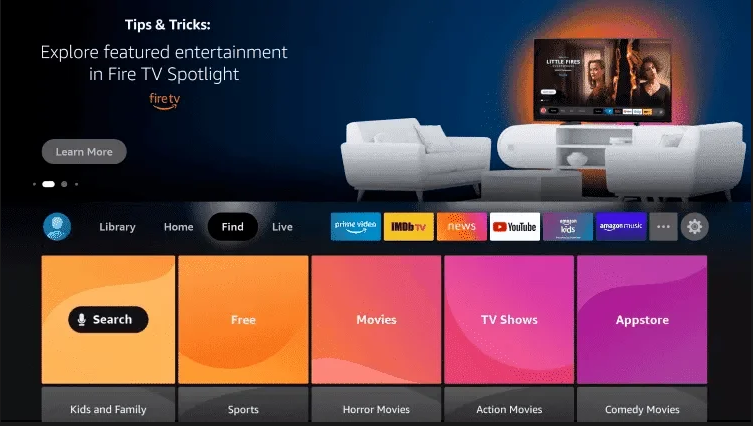
1: From the home screen of your device, hover over the

iptv subscription

2: Click Search.

iptv subscription

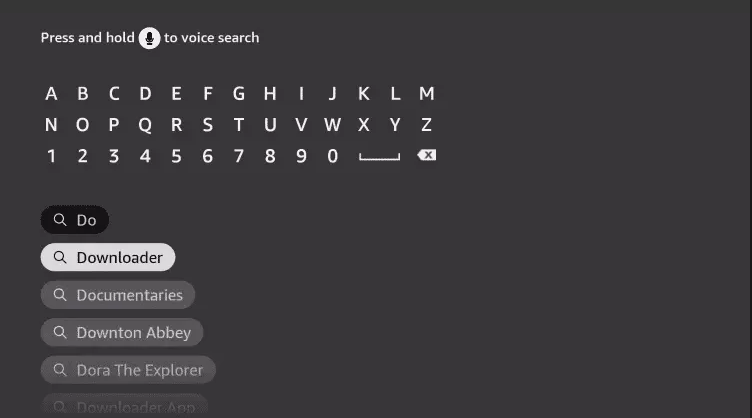
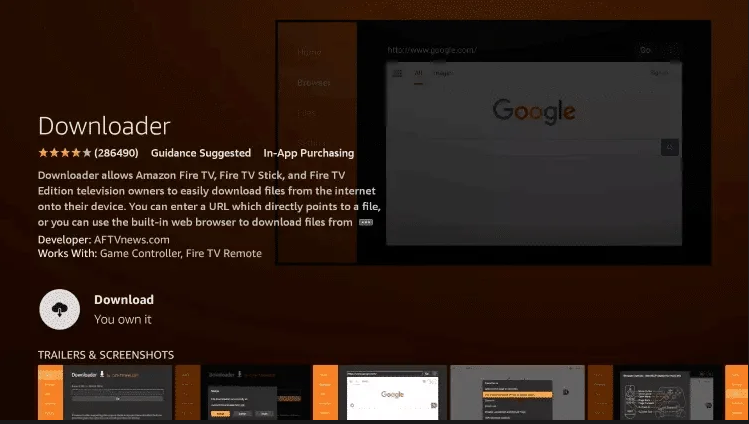
3: Search for and select Downloader.

iptv subscription

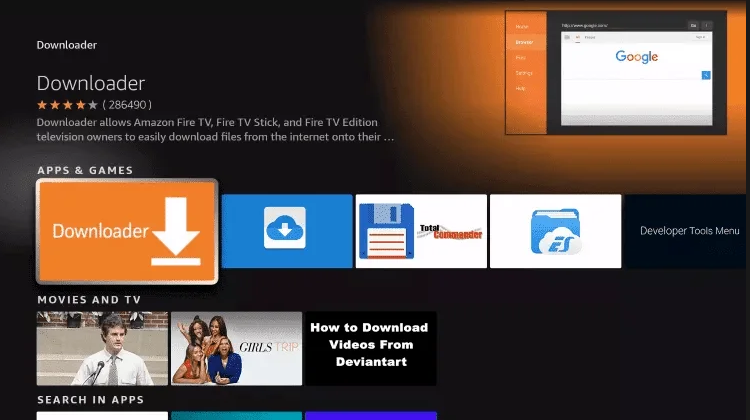
4: Choose the Downloader app.

iptv subscription

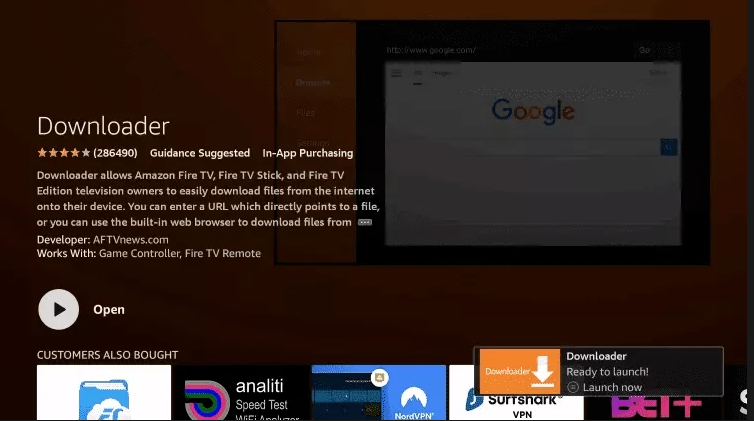
5: Click Download.

iptv subscription

6:Once the app finishes installing click Open.

iptv subscription

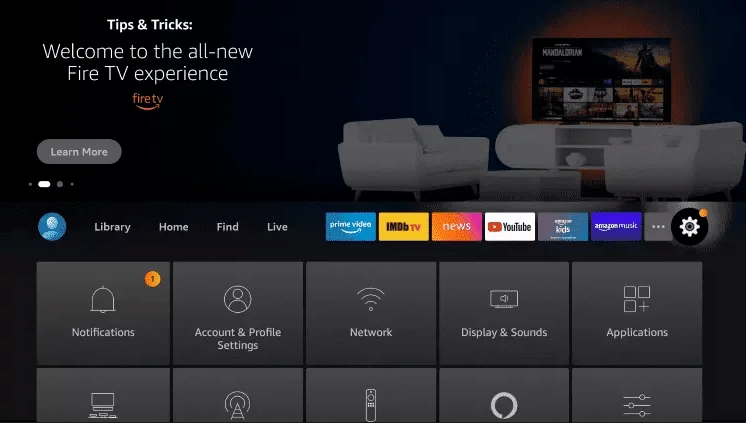
7:Return to the home screen and open Settings.

iptv subscription

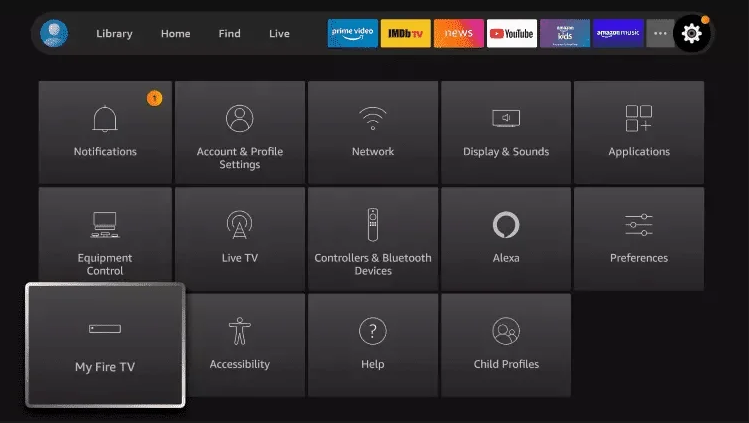
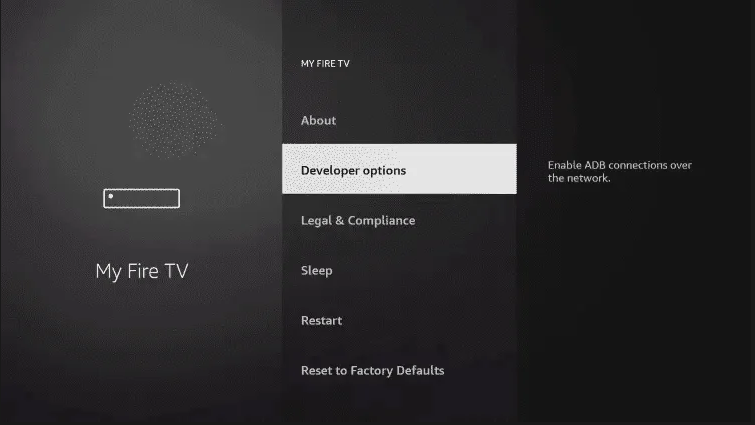
8: Click My Fire TV.

iptv subscription

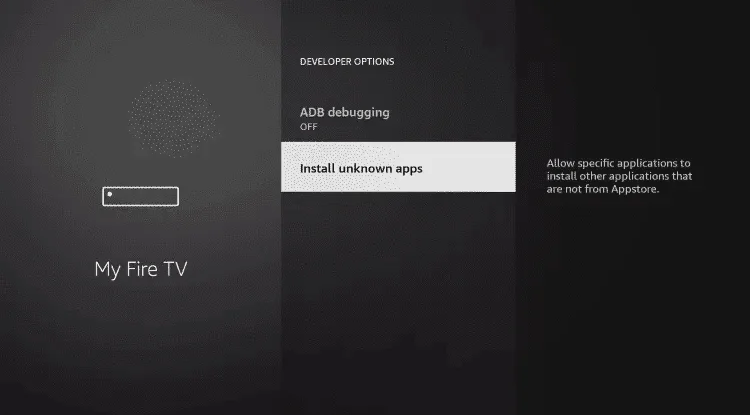
9: Choose Developer options.

iptv subscription

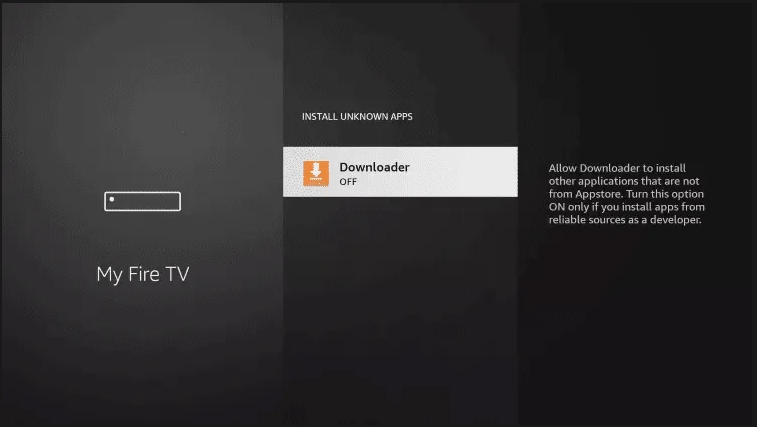
10: Click Install unknown apps.

iptv subscription

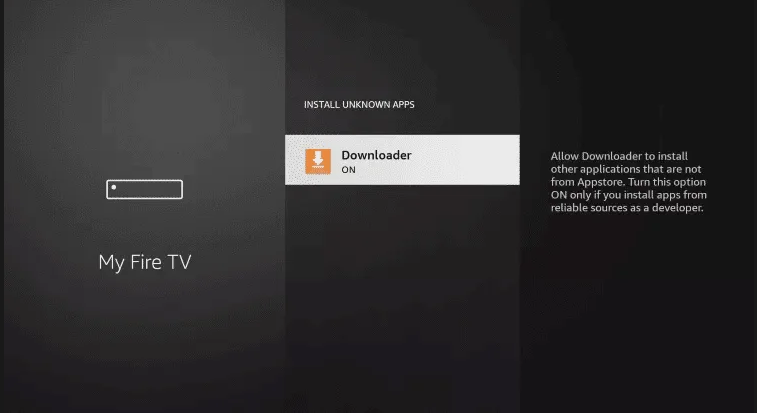
11: Find the Downloader app and click it.

iptv subscription

12: This will turn Unknown Sources to on for the Downloader app, this will enable side-loading on your device.

iptv subscription

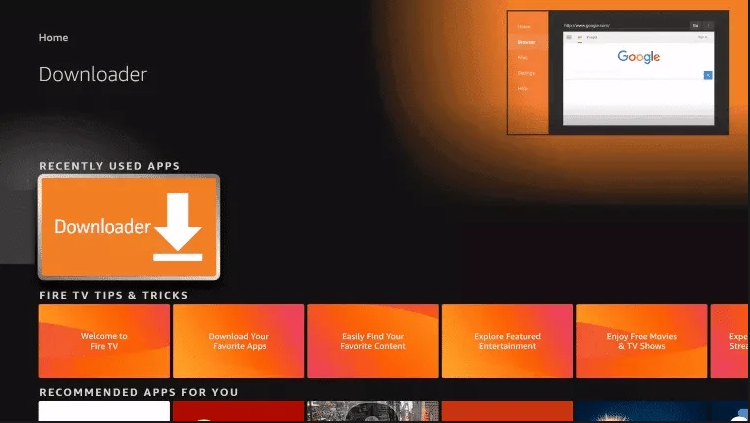
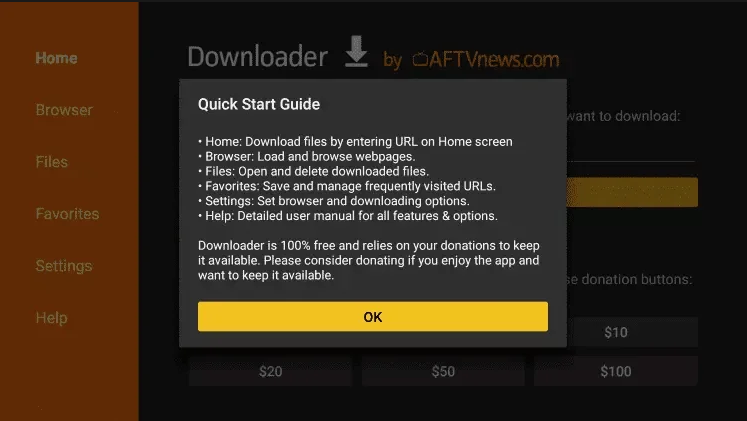
13: Launch Downloader.

iptv subscription

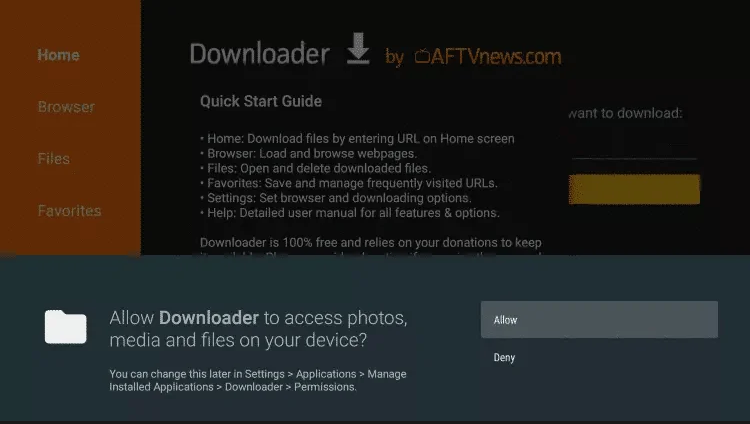
14: Click Allow.

iptv subscription

15: Click Allow.

iptv subscription

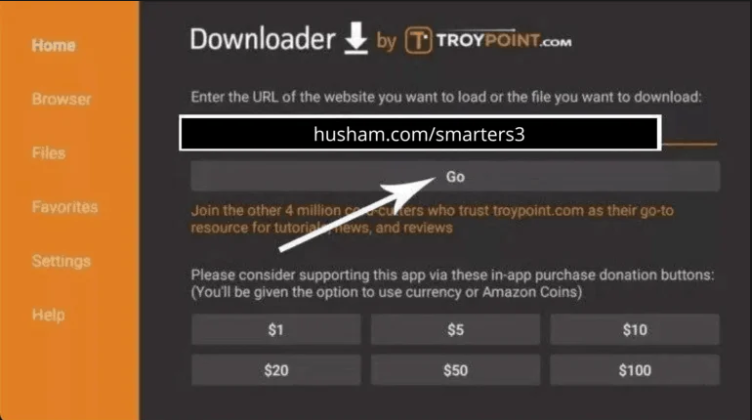
16: Type the following exactly as shown here: https://www.iptvsmarters.com/smarters.apk and click GO.

iptv subscription
iptv subscription

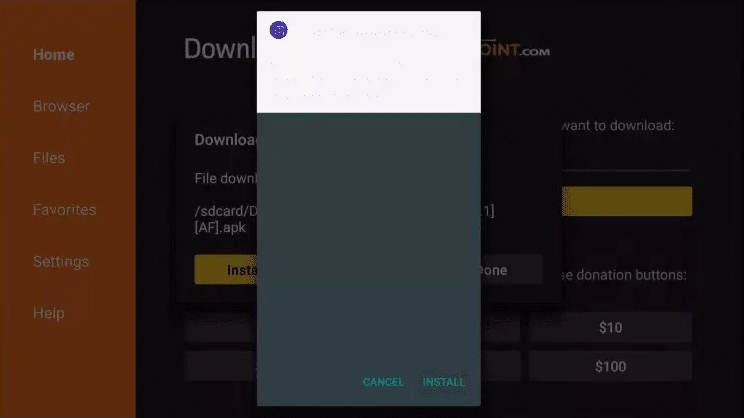
18: Click Install.

iptv subscription

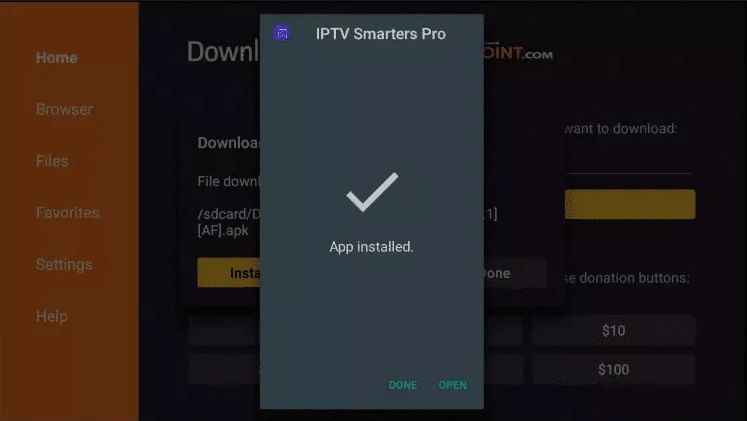
19: Click Done.

iptv subscription

20: Open IPTV smarters then select login with Xtream codes api.

21: Enter the login details that we sent you via whatsapp or Email or Chat FOR TIVIMATE

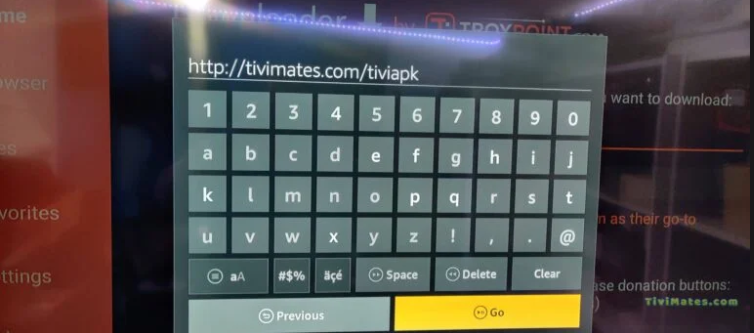
1. Type the following URL exactly as shown here: https://tivimates.com/tiviapk and click GO.

iptv subscription

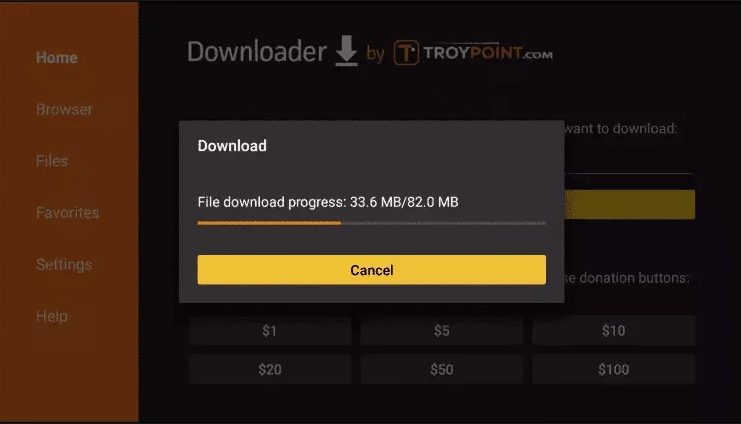
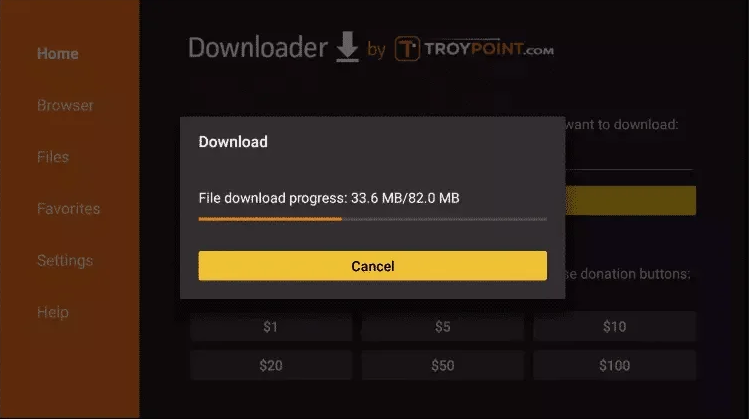
2. Wait for file to download.

iptv subscription

Wait for the file download to finish.

4. Click "ADD Playlist" then choose "XTREAM codes"

Congratulations! You’ve successfully installed your Flexe IPTV key on your Fire TV Stick. Now you can enjoy all the channels and features included in your iptv subscription without any hassle. Remember, your Flexe IPTV subscription gives you access to high‑quality streaming, reliable service, and the best entertainment experience right on your TV. If you ever need help or want to explore more devices, our support team is here to guide you.

Scroll to Top